Winget
Code snippets with little-to-no explanation.
Winget
Import/Export Winget packages
Export a list of installed packages discovered by winget to a .json file, then import the list to reinstall everything. Useful as a backup, or to move to a new computer.
Note
The filename in the examples below, C:\path\to\winget-pkgs.json, can be named anything you want, as long as it has a .json file extension.
Export
## Set a path, the file must be a .json
$ExportfilePath = "C:\path\to\winget-pkgs.json"

## Export package list
winget export -o "$($ExportfilePath)"
Import
## Set the path to your export .json file
$ImportfilePath = "C:\path\to\winget-pkgs.json"

## Import package list
winget import -i "$($ImportfilePath)"
Get uptime
(Get-Date) – (Get-CimInstance Win32_OperatingSystem).LastBootUpTimeFunctions
Functions in your profile will be executed automatically if you call them within the profile, but they are also available to your entire session. For example, the Edit-Profile function function can be executed in any session that loads a profile with that function declared!
Check elevated/admin
The function below returns $True if the current Powershell session is elevated, otherwise returns $False.
function Get-ElevatedShellStatus {
    ## Check if current user is admin
    $Identity = [Security.Principal.WindowsIdentity]::GetCurrent()
    $Principal = New-Object Security.Principal.WindowsPrincipal $Identity
    $AdminUser = $Principal.IsInRole([Security.Principal.WindowsBuiltInRole]::Administrator)

    return $AdminUser
}

## Declare variable for references throughout script.
#  Can be used to prevent script from exiting/crashing.
$isAdmin = $(Get-ElevatedShellStatus)
Open/execute as admin
function Open-AsAdmin {
    <#
        Run command as admin, or start new admin session if no args are passed
    #>
    if ($args.Count -gt 0) {
        $argList = "& '" + $args + "'"
        Start-Process "$psHome\powershell.exe" -Verb runAs -ArgumentList $argList
    }
    else {
        Start-Process "$psHome\powershell.exe" -Verb runAs
    }
}
Open Powershell profile.ps1 file for editing
function Edit-Profile {
    <#
        Open current profile.ps1 in PowerShell ISE
    #>
    If ($host.Name -match "ise") {
        ## Edit in PowerShell ISE, if available
        $psISE.CurrentPowerShellTab.Files.Add($profile.CurrentUserAllHosts)
    }
    Else {
        ## Edit in Notepad if no PowerShell ISE found
        notepad $profile.CurrentUserAllHosts
    }
}
Delay Conda execution
Conda is a Python package manager. It’s a very useful utility, but I’ve found adding it to my $PATH or Powershell profile results in a very slow session load in new tabs/windows. Adding the SOURCE_CONDA function below, and settings an alias to the conda command to call this function instead (Set-Alias conda SOURCE_CONDA), delays the sourcing of the Conda path. The first time you run conda in a new session, you will see a message that Conda has been initialized and you need to re-run your command. You can simply press the up key on your keyboard and run it again; now that Conda is initialized, it will execute, and once a Powershell session is loaded, sourcing Conda is much quicker!
function SOURCE_CONDA {
    <#
      Initialize Conda only when the conda command is run.
      Conda takes a while to initialize, and is not needed in
      every PowerShell session
    #>
    param(
      [String]$CONDA_ROOT = "%USERPROFILE%\mambaforge\Scripts\conda.exe"
    )

    #region conda initialize
    # !! Contents within this block are managed by 'conda init' !!
  (& "$CONDA_ROOT" "shell.powershell" "hook") | Out-String | Invoke-Expression
    #endregion

    Write-Host "Conda initialized. Run your command again."

}
Get system uptime
Unix OSes have a very nice, simple command, uptime, that will simply print the number of days/hours/minutes your machine has been online. The Powershell syntax for this is difficult for me to remember, so my Powershell profile has an uptime function declared.
function uptime {
    ## Print system uptime

    If ($PSVersionTable.PSVersion.Major -eq 5 ) {
        Get-WmiObject win32_operatingsystem |
        Select-Object @{EXPRESSION = { $_.ConverttoDateTime($_.lastbootuptime) } } | Format-Table -HideTableHeaders
    }
    Else {
        net statistics workstation | Select-String "since" | foreach-object { $_.ToString().Replace('Statistics since ', '') }
    }
}
Unzip function
Unix OSes have a simple, easy to remember unzip command. This function tries to emulate that simplicity.
function unzip ($file) {
    ## Extract zip archive to current directory

    Write-Output("Extracting", $file, "to", $pwd)
    $fullFile = Get-ChildItem -Path $pwd -Filter .\cove.zip | ForEach-Object { $_.FullName }
    Expand-Archive -Path $fullFile -DestinationPath $pwd
}
Touch a file (create empty file, if one doesn’t exist)
Unix OSes have a useful utility called touch, which will create an empty file if one doesn’t exist at the path you pass it, i.. touch ./example.txt. This function tries to emulate that usefulness and simplicity.
function touch($file) {
    ## Create a blank file at $file path

    "" | Out-File $file -Encoding ASCII
}
Lock your machine
Adding this function to your Powershell profile lets you lock your computer’s screen by simply running lock-screen in a Powershell session.
function lock-machine {
    ## Set computer state to Locked

    try {
        rundll32.exe user32.dll, LockWorkStation
    }
    catch {
        Write-Error "Unhandled exception locking machine. Details: $($_.Exception.Message)"
    }

}
Formatting
Inline formatting with -NoNewline
To format different parts of a Write-Host string without adding new lines, you can use the -NoNewline; param.
A simple example of making the left part of a string green and the right part red:
Write-Host "I am green, " -ForegroundColor Green -NoNewline; Write-Host "and I am red!" -ForegroundColor RedWhich outputs:

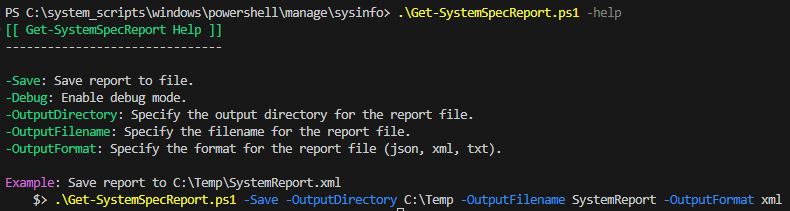
You can format long strings with -NoNewline; by entering a new line after the ; character.
Param(
  [switch]$Help
)

If ( $Help ) {
    Write-Host "[[ Get-SystemSpecReport Help ]]" -ForegroundColor Green
    Write-Host ("-" * 31)
    Write-Host ""

    Write-Host "-Save" -ForegroundColor Green -NoNewline; Write-Host ": Save report to file."
    Write-Host "-Debug" -ForegroundColor Green -NoNewline; Write-Host ": Enable debug mode."
    Write-Host "-OutputDirectory" -ForegroundColor Green -NoNewline; Write-Host ": Specify the output directory for the report file."
    Write-Host "-OutputFilename" -ForegroundColor Green -NoNewline; Write-Host ": Specify the filename for the report file."
    Write-Host "-OutputFormat" -ForegroundColor Green -NoNewline; Write-Host ": Specify the format for the report file (json, xml, txt)."
    Write-Host ""

    ## Format shell code example using -NoNewline;
    Write-Host "Example" -ForegroundColor Magenta -NoNewline; Write-Host ": Save report to C:\Temp\SystemReport.xml"
    Write-Host "    $> " -NoNewline;
    Write-Host ".\Get-SystemSpecReport.ps1 " -ForegroundColor Yellow -NoNewline;
    Write-Host "-Save " -ForegroundColor Blue -NoNewline;
    Write-Host "-OutputDirectory " -ForegroundColor Blue -NoNewline;
    Write-Host "C:\Temp " -NoNewline;
    Write-Host "-OutputFilename " -ForegroundColor Blue -NoNewline;
    Write-Host "SystemReport " -NoNewline;
    Write-Host "-OutputFormat " -ForegroundColor Blue -NoNewline;
    Write-Host  "xml"

    exit 0
}
The script content above outputs: